
How to encrypt a folder on Windows (free)
If you keep tax returns, ID scans, contracts or private photos on your PC, encrypting them means that even if your laptop is lost, stolen or snooped on, those files stay unreadable without your password. Windows gives you a few built-in options, and there are free apps that make it simpler. Here are four ways, and how to choose.
1. Windows EFS (“Encrypt contents to secure data”)
Right-click a folder → Properties → Advanced → “Encrypt contents to secure data.” Windows encrypts the folder transparently, tied to your Windows user account.
- Good: built in, no download, invisible once set up.
- Catch: only on Windows Pro/Enterprise (not Home). It's tied to your Windows login, so if that profile breaks and you didn't export the key, the files are gone. It doesn't help if someone has your unlocked account.
2. A password-protected 7-Zip archive
Install the free 7-Zip, right-click the folder → 7-Zip → Add to archive, set the format to 7z, and enter a password (tick Encrypt file names). It uses AES-256.
- Good: free, works on any edition of Windows, strong encryption.
- Catch: you're managing a separate archive file. To use anything inside you extract the whole thing, and it's easy to leave decrypted copies lying around.
3. BitLocker
BitLocker encrypts an entire drive, not a single folder. Useful for whole-disk protection on a laptop.
- Good: protects everything if the machine is lost or stolen.
- Catch: Pro/Enterprise only, and it's all-or-nothing — no per-folder control. Once you're logged in, the files are open.
4. A dedicated encryption app
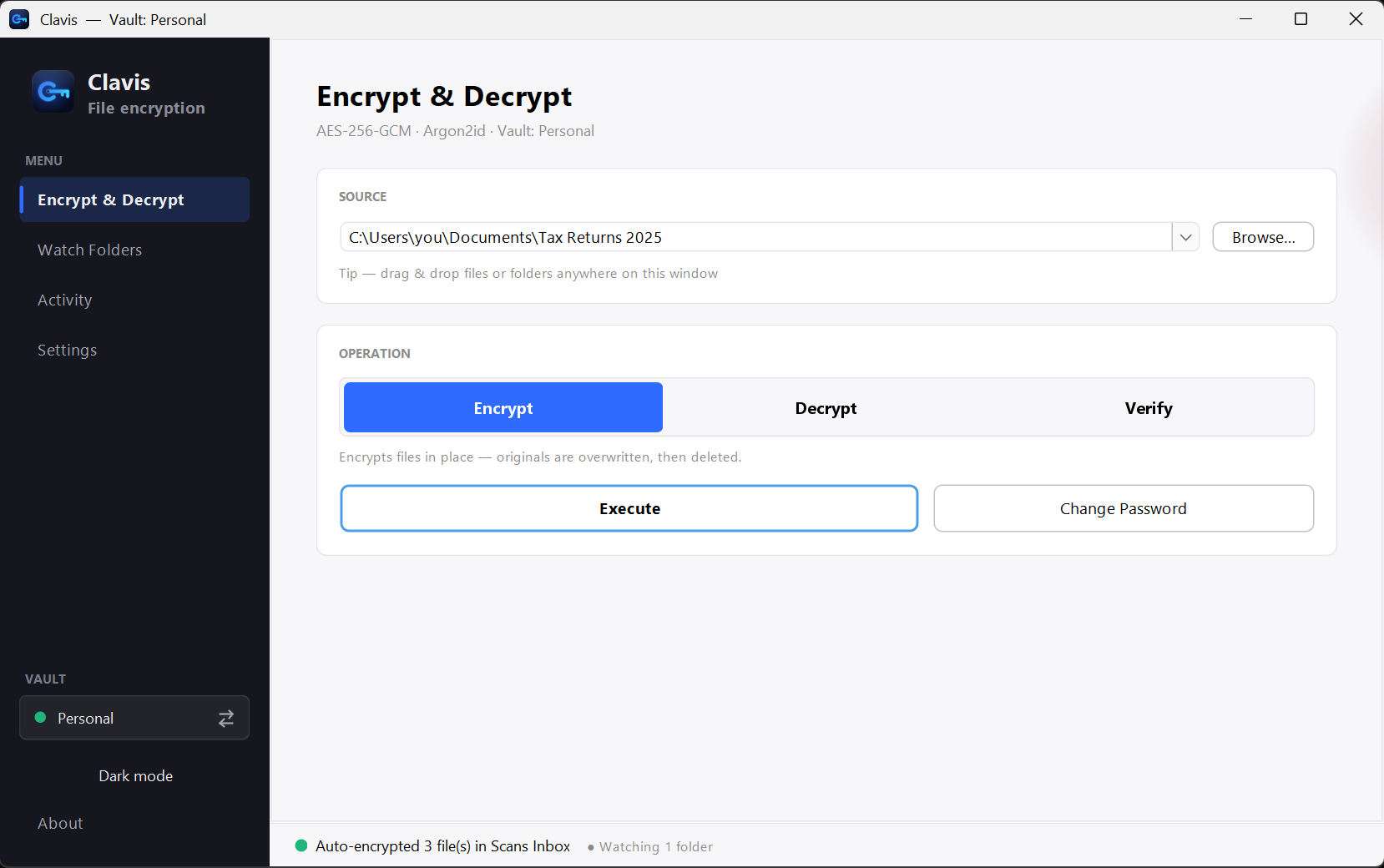
A purpose-built app gives you per-file and per-folder encryption on any edition of Windows, with a proper way back in if you forget your password. That's the gap Clavis fills — free, local, no account.
Which should you use?
- Just need a quick locked bundle? A 7-Zip archive is fine.
- On Windows Pro and want whole-disk cover? BitLocker.
- Want simple, per-folder encryption on any Windows, with a recovery key? Use a dedicated app like Clavis.
Whatever you choose, remember two things
Use a strong, unique password — real encryption is only as strong as the password behind it. And keep a way back in. Good encryption means nobody can open your files without the password — including you. A recovery key or an exported key is what saves you if you forget it.