
How to password-protect a PDF on Windows (free)
A PDF of a contract, a payslip, medical results or an ID scan shouldn't sit unprotected on your PC or in an email. On Windows you can lock a PDF for free — here are the reliable ways, one big thing to avoid, and a stronger option that works for any file, not just PDFs.
Method 1: LibreOffice (free, any file you can open)
LibreOffice is free and can export a password-protected PDF from almost any document.
- Open the document (or the PDF) in LibreOffice.
- File → Export As → Export as PDF.
- On the Security tab, click Set Passwords, enter an open password, and export.
Anyone opening the PDF now needs the password. Free, offline, no account.
Method 2: Microsoft Word
If your document is already in Word, you can export a locked PDF directly:
- File → Save As, choose PDF as the type.
- Click Options… and tick “Encrypt the document with a password.”
- Set a password and save.
Method 3: Adobe Acrobat (paid)
Acrobat Pro can encrypt PDFs (Protect → Encrypt with password) with fine-grained permissions. It's powerful but a paid subscription — overkill if you just need to lock a file.
Method 4: Encrypt the file itself (strongest, any file type)
A PDF's built-in password is convenient, but its strength varies — older PDFs use weak schemes, and "PDF password remover" tools exist for a reason. For anything genuinely private, a stronger approach is to encrypt the file with modern encryption. That also works for photos, spreadsheets, ZIPs — anything, not just PDFs.
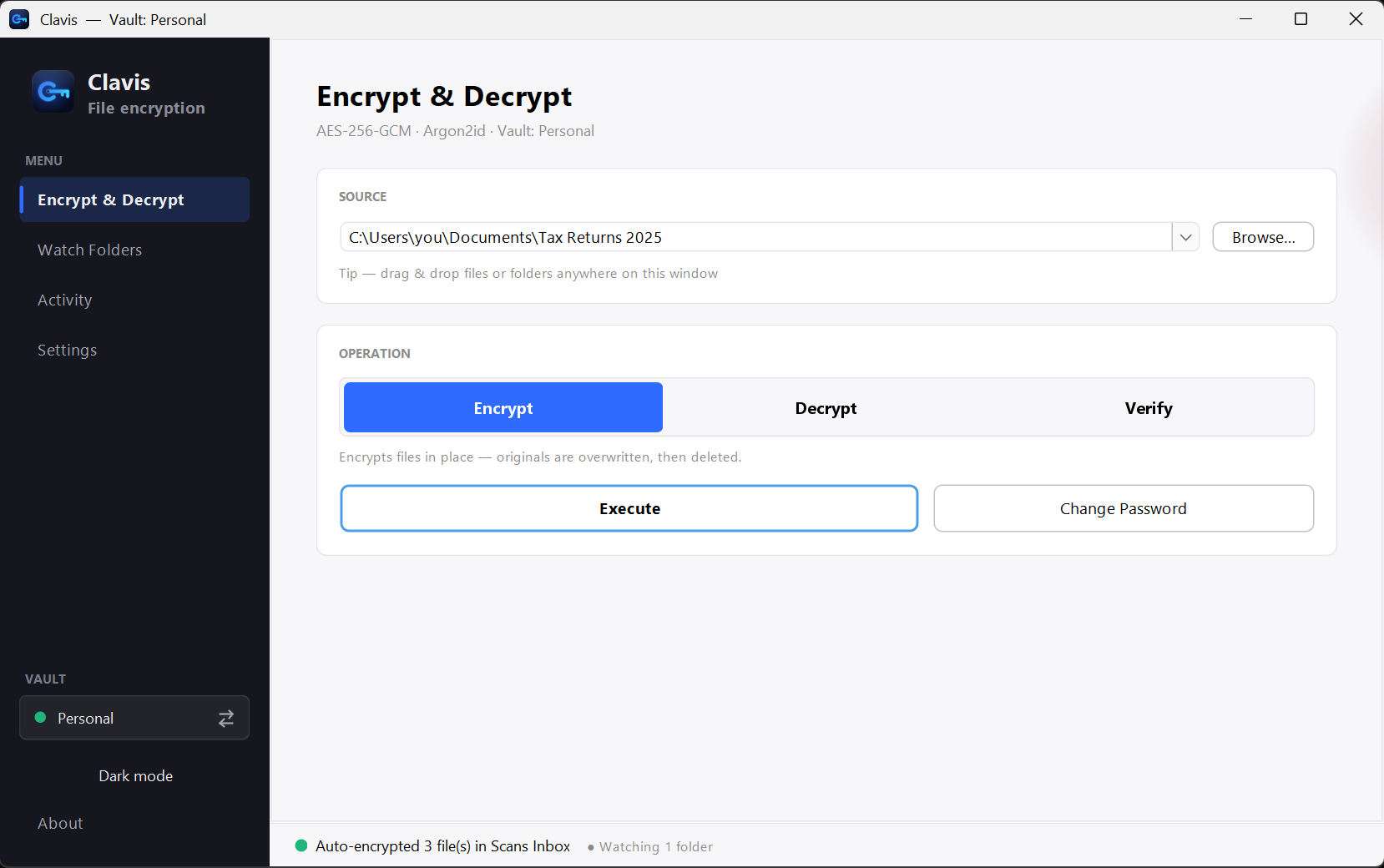
That's what Clavis does: it wraps the whole file in AES-256-GCM with a key derived from your password (Argon2id), on your PC. The result is a single locked file only your password can open.
Which method should you use?
| Method | Cost | Best for |
|---|---|---|
| LibreOffice | Free | A password-locked PDF you'll share with someone |
| Microsoft Word | Paid (Office) | Documents you already edit in Word |
| Adobe Acrobat | Paid | Advanced PDF permissions |
| Encrypt the file (Clavis) | Free | Strong protection for private files of any type |
Three habits that matter more than the method
- Use a strong, unique password. A locked PDF with "1234" isn't locked.
- Never send the password with the file. Share the file one way, the password another (e.g. a separate message or call).
- Keep a way back in. If you forget the password, real encryption means the file stays shut — for you too. Note it in a password manager, or use a tool with a recovery key.
For a locked PDF you're emailing someone, LibreOffice is quick. For files you truly need private, encrypting the file itself is the stronger move — and Clavis does it in two clicks. See the Security page for the details.