
How to encrypt files before uploading them to OneDrive, Google Drive or Dropbox
OneDrive, Google Drive and Dropbox all say your files are encrypted. They are — with keys the provider holds. That protects you from someone stealing a hard drive from a data centre. It doesn't protect you from the provider itself, a legal request, an employee, a breach of your account, or an automated scanner reading your documents.
The fix is client-side encryption: encrypt the file on your PC first, so the cloud only ever receives ciphertext. Here are three ways to do it, from manual to automatic.
Option 1: a password-protected archive
With the free 7-Zip, right-click files → 7-Zip → Add to archive, choose 7z, set a password and tick Encrypt file names, then move the archive into your cloud folder. Fine for a one-off, clumsy for anything you change often.
Option 2: an encrypted vault folder
Tools like Cryptomator keep a vault folder inside your cloud folder and show it as a virtual drive. Good if you want to work on files "inside" the vault all day; it's another drive letter to manage.
Option 3: encrypt straight into the cloud folder
Clavis Premium has Encrypt to cloud folder: it finds your OneDrive, Google Drive or Dropbox folder and puts an
encrypted copy of your files into a Clavis subfolder there. The sync app uploads .enc files with random names —
nothing about the content, or even the file names, reaches the provider. Your originals stay where they are.
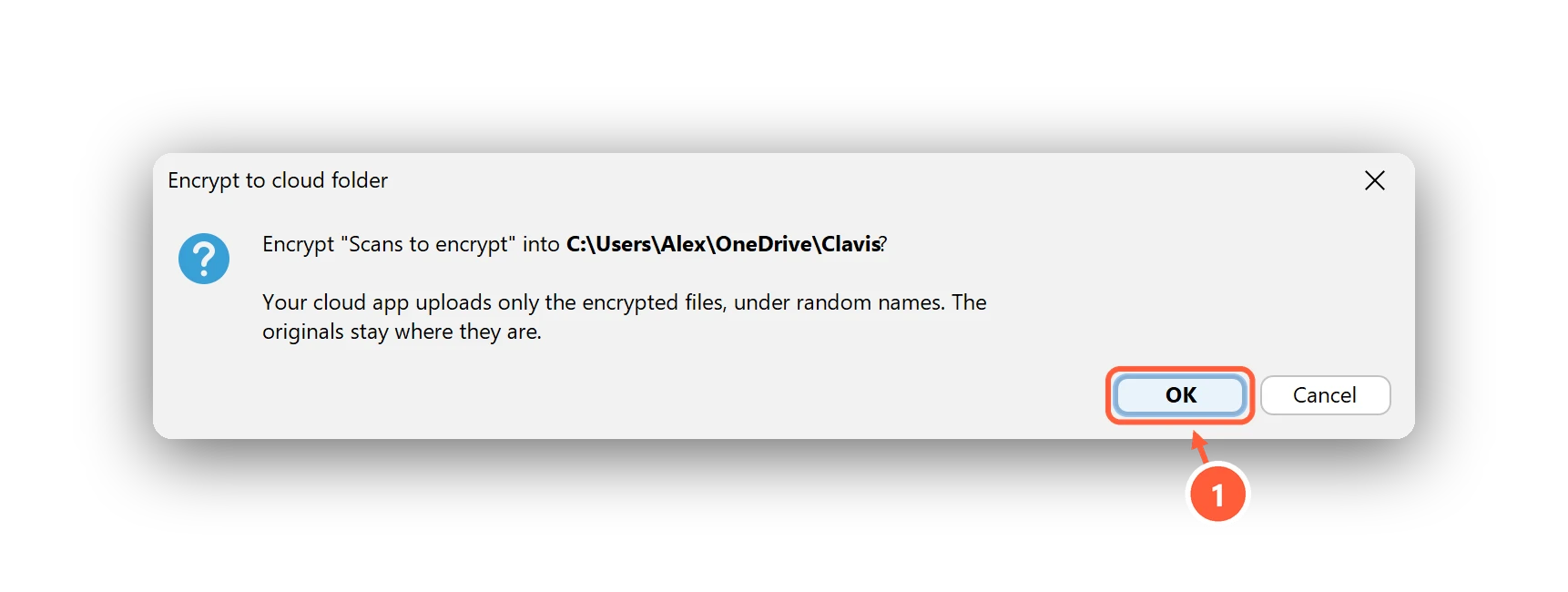
Right-click any file or folder → Clavis → Encrypt to cloud folder, and you're done. On another PC with your vault, open or decrypt the files from the cloud folder like any others. Full walkthrough: Encrypt files into your cloud folder.
Three things to get right whichever tool you use
- Encrypt before the file touches the synced folder. If you save a plain file there first, it's uploaded within seconds — and it stays in the provider's version history even after you delete it.
- Check for old copies. Look in the cloud's web interface, its recycle bin and version history for unencrypted copies.
- Keep your key off the cloud. The password and recovery key protect everything; don't store them in the same account.
More on the reasoning in Why local encryption beats trusting the cloud.