
Encrypt files into OneDrive, Google Drive or Dropbox
Cloud storage is convenient, but the provider can read what you upload. Encrypt to cloud folder puts an encrypted copy
of your files into your OneDrive, Google Drive or Dropbox folder: the sync app only ever sees .enc files with random names.
Your originals stay where they are.
1. Pick your cloud folder
Clavis usually finds OneDrive, Google Drive or Dropbox by itself. To choose another folder, open
Settings → Cloud folder → Change…. Encrypted copies go into a Clavis folder inside it.
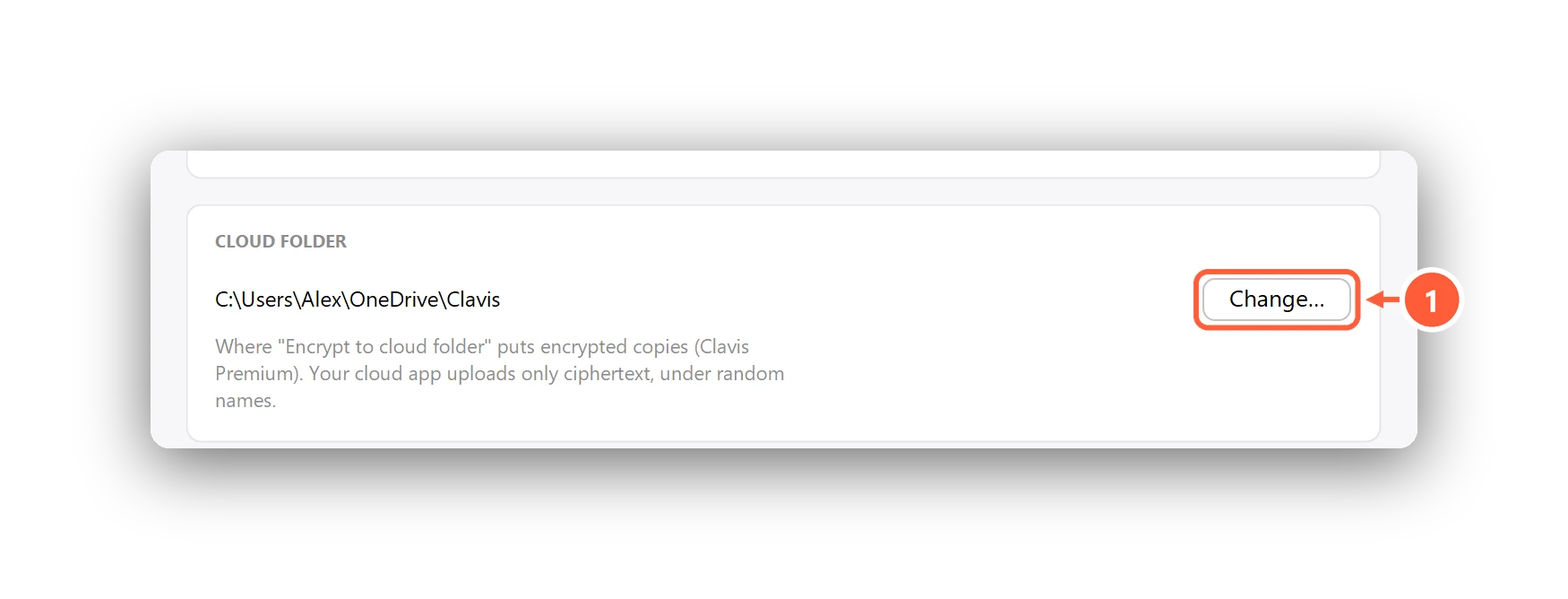
- Pick your OneDrive / Google Drive / Dropbox folder
2. Encrypt into it
Choose Encrypt to Cloud in the sidebar, or right-click files or folders in File Explorer → Clavis → Encrypt to cloud folder.
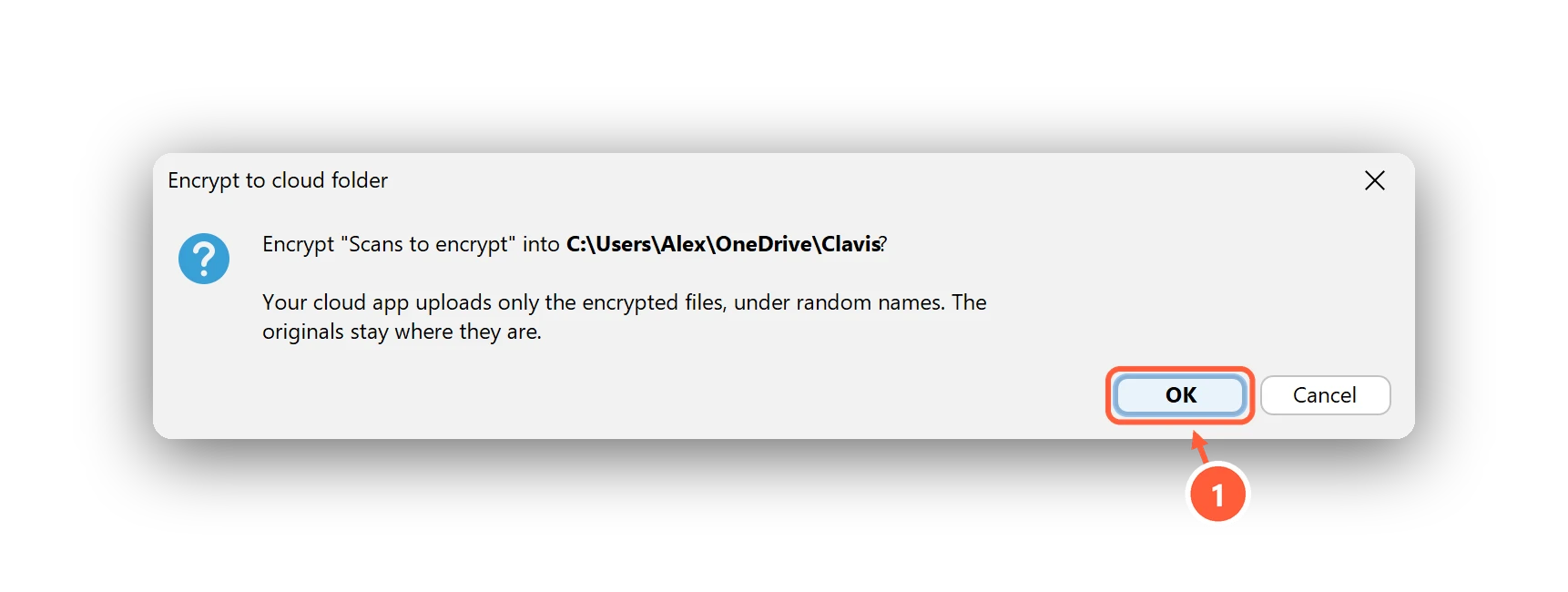
- Encrypted copies go to OneDrive\Clavis — originals stay
Getting files back
On any PC with Clavis and your vault (see backup & restore), open, browse or decrypt the
.enc files in the cloud folder like any others.
Can't find what you need? All help articles · Email us