
How to find forgotten ID, bank and tax document scans on your Windows PC
You probably know where your "important documents" folder is. The copies that worry people are the other ones: a passport scan saved for a visa or rental application two years ago, a photo of an ID card someone sent you in a chat, a bank statement downloaded for a loan, last year's tax return attached to an email. They pile up in Downloads, WhatsApp Desktop, the Desktop and Pictures, often with names like IMG_2041.jpg or document(3).pdf. This guide shows where they hide on a Windows PC, how to find them, and how to lock them so a lost laptop or a repair shop can't read them.
%LOCALAPPDATA%\Packages\5319275A.WhatsAppDesktop_cv1g1gvanyjgm\LocalState\shared\transfers ). File Explorer search finds copies with obvious names like "passport" or "statement". To help with the rest, Find sensitive files in Clavis Encrypt Pro checks file names and the text inside documents, pictures and PDFs on your PC, lists likely ID, bank, salary and tax documents with the reason for each, and encrypts the ones you tick. You review the list first, and nothing leaves your PC. It can miss documents, so look through your usual folders too.Where ID scans hide on a Windows PC
| Place | How copies get there | Checked by Find sensitive files |
|---|---|---|
DownloadsC:\Users\<you>\Downloads | Everything your browser saves: statements from online banking, tax documents from a tax or payroll website, digital copies of ID documents, attachments downloaded from Gmail or Outlook on the web, files saved from WhatsApp Web. | Yes |
WhatsApp Desktop%LOCALAPPDATA%\ | Photos and documents received in chats on this PC. The folder is hidden inside AppData, so most people never see it, and the file names often look random. | Yes, when WhatsApp Desktop is installed |
| Desktop | Copies saved "just for a minute" before uploading to a form, and scans dropped there by a scanner app. | Yes |
| Pictures (including Screenshots and Camera Roll) | Phone photos copied to the PC, screenshots of a banking app, photos of a passport page, an ID card or a cheque. | Yes. Photos here are checked by name unless you tick Also read every photo in Pictures |
| Documents | Email attachments saved with "Save as", scanner output, payslips, an old folder of ID copies. | Yes |
| Other drives and folders (D:, a USB stick, an old "Scans" folder) | Copies from an old PC or a backup. | Add them with Add a folder… |
| Your mailbox, WhatsApp on your phone, cloud drives | The original attachments and chats. | No: clean these up in the app or website itself (see step 4) |
Step 1: search by name in File Explorer (5 minutes)
This catches files whose names give them away. Open File Explorer, go to your user folder (C:\Users\<you>), click the search box and try:
passport, then"id card" OR idcard,licence OR licensestatement OR passbook,payslip OR salary,tax- Your country's own names for ID and tax documents. People spell them many ways, so combine spellings with
OR(in capitals), for exampleaadhaar OR aadhar OR adhar. - Add
ext:.pdforext:.jpgto narrow a long list.
For WhatsApp Desktop, paste %LOCALAPPDATA%\ into File Explorer's address bar and press Enter. Name search has a clear limit: it won't tell you that IMG_2041.jpg is a photo of your ID card. That's what step 2 is for.
Step 2: let Clavis look inside the files
Install Clavis Encrypt (free; Windows 10 and 11, also on the Microsoft Store), create a vault with a strong password, and keep the one-time recovery key safe. Find sensitive files is part of Clavis Pro; encrypting files one at a time is free. Then:
- Choose Find Sensitive Files in the sidebar.
- Under Where to look, keep Documents, Downloads, Desktop and Pictures, and WhatsApp ("Files received in WhatsApp on this PC") if it's listed. Press Add a folder… for anything else, such as
D:\Scansor an old backup folder. - Under What to read, leave Read text inside pictures and PDFs on. Clavis uses the text recognition built into Windows to read photos and the first page of PDFs, so a scanned bank statement called
scan0001.pdfcan still be spotted. If you keep phone photos in Pictures, also tick Also read every photo in Pictures (slower with a big photo library). - Press Start search. Files appear as they're found; you can switch to another page meanwhile, and Stop keeps what was found so far.
- Check the list. Likely sensitive files are ticked; Possibly sensitive ones (such as medical reports and cheques) are not ticked, so look at those yourself. Each file says why it's listed, for example Looks like a bank statement, Looks like a salary slip or File name says "passport". Use Show in folder or Open from the ⋯ menu if you're not sure.
- For a file you never want suggested again, choose ⋯ → Never suggest this file (you can Undo).
- Press Encrypt selected and confirm. Each file becomes a
.encfile that opens only with your vault password, and the original is overwritten, then deleted.
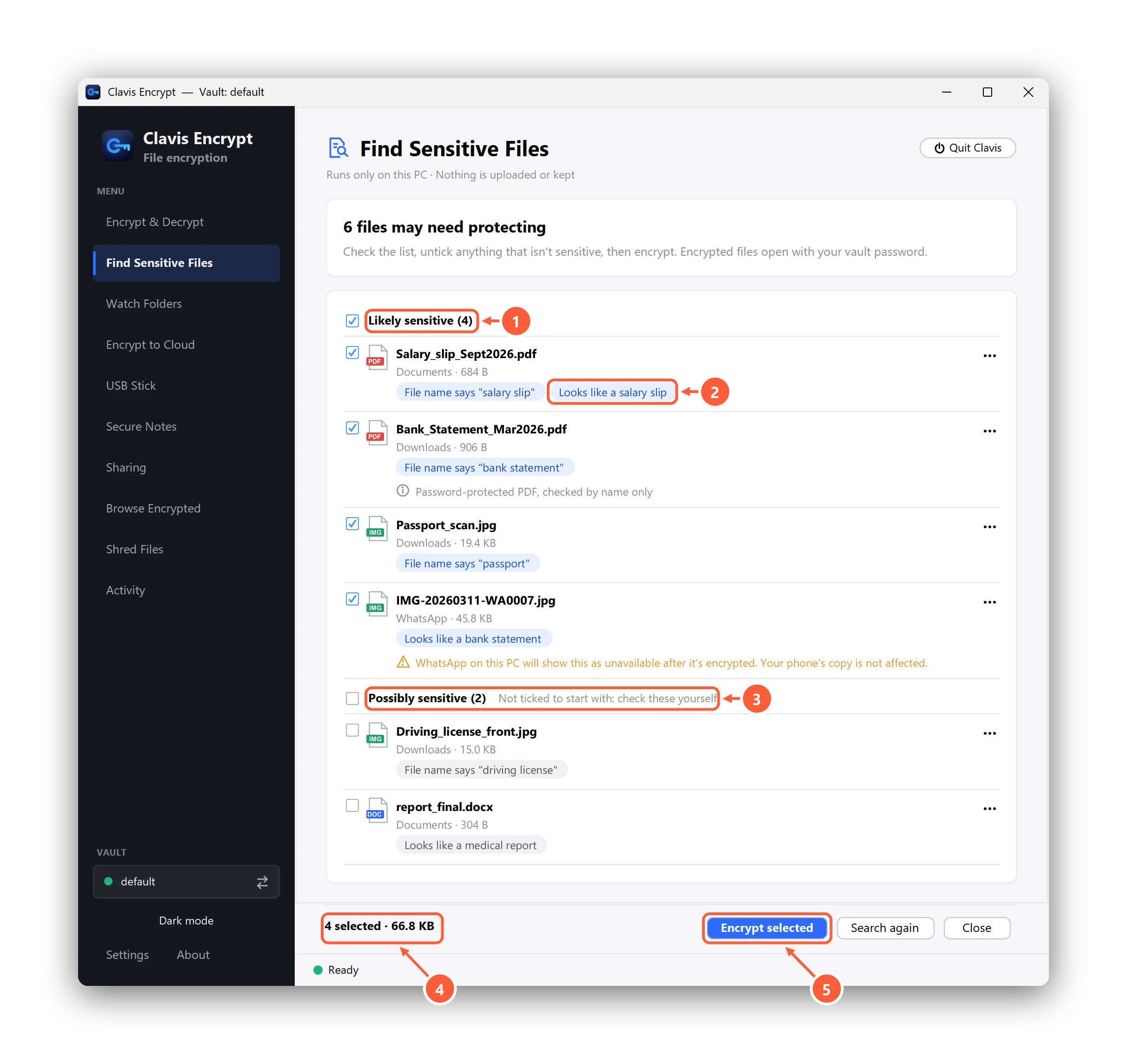
- Likely sensitive: ticked for you
- Why each file is listed
- Possibly sensitive: not ticked, check these yourself
- How many files are selected
- Encrypt them with your vault password
Full details: Find sensitive files on your PC (help).
Step 3: keep, or remove?
- Copies you still need (your own passport, ID card, recent tax returns): keep them encrypted. When a form asks for a copy, double-click the
.encfile, upload it, and close it. More on this in is it safe to keep ID scans on your laptop? - Duplicates and copies you don't need (five versions of the same passport scan, someone else's documents sent for one form): delete them. Clavis's free Shred overwrites a file before deleting it; that's best effort on SSDs, USB sticks and memory cards, and backups or cloud version history may still hold a copy.
- Where the full number isn't needed, share a copy with most of the ID number covered up. It still shows your name, photo and address, so treat it as sensitive too.
If you're in India: a masked Aadhaar (only the last four digits visible) can be downloaded from myaadhaar.uidai.gov.in. Clavis lists masked Aadhaar copies too, because they still show your name, photo and address.
Step 4: clean up the copies that aren't on your PC
- Gmail: search
has:attachment filename:pdf passport(orstatement,tax) and delete old emails you don't need, or at least the ones you sent yourself "for safekeeping".older_than:2ynarrows it to old mail. - Outlook: search
hasattachment:yes passport. - WhatsApp: delete the media from the chat in WhatsApp itself, on your phone and on the PC. Encrypting a file found in the WhatsApp Desktop folder protects the PC copy (WhatsApp on that PC then shows it as unavailable), but the copy on your phone isn't affected.
- Cloud drives: if OneDrive or Google Drive syncs these folders, the cloud may also keep older versions. See encrypting before the cloud.
What Find sensitive files can and can't do
| It can | It can't, or doesn't |
|---|---|
| Read file names, the text in Word, Excel, .txt and .csv files and, on Windows, the text in pictures and the first page of PDFs | Open password-protected PDFs: these are checked by name only |
| Spot by file name: passports, driving licences, birth certificates, bank statements, payslips, tax and medical documents (names such as "passport", "bank statement", "payslip", "income tax") | Promise to find every document: blurry photos, documents in languages other than English, or files with unusual names can be missed |
| Spot by content: bank statements and payslips (by their English headings), and some ID and tax documents. Today that's India's Aadhaar, PAN, passport and voter ID cards and its income-tax forms | Read other countries' ID numbers or tax forms by content (for example US Social Security or UK National Insurance numbers): those are spotted by file name only, so check them yourself |
| Avoid false alarms: an ID number is listed as likely only when it passes the number's check digit (where it has one) and the ID's name appears nearby, and well-known example numbers from forms and guides are ignored | Read the text of files OneDrive keeps online only: those are checked by name, so nothing is downloaded |
| Run only on your PC, only when you press Start search, and keep no list of what it found | Search your email, your phone or cloud accounts |
| Encrypt everything you tick in one go | Read text in pictures and PDFs on Linux (it checks names and documents there), or run when Clavis is started from a USB stick |
"No sensitive files found" means nothing matched in the folders you chose, not that there's nothing to protect. Look through your usual folders too.
Questions
How do I find scans of my passport or ID card on my laptop?
Search File Explorer for "passport" and "id card" from your user folder, and check Downloads, Desktop, Pictures and the WhatsApp Desktop folder. Scans with meaningless names like IMG_2041.jpg won't show up in a name search. Clavis Encrypt's free Find sensitive files also reads the text inside documents, pictures and PDFs on your PC and lists likely ID, bank and tax documents, which you can then encrypt. It can miss blurry photos and some countries' documents, so check your usual folders too.
Where are WhatsApp Desktop downloaded documents stored on a PC?
For the WhatsApp app for Windows, files received in chats are kept in a hidden folder: %LOCALAPPDATA%\Packages\5319275A.WhatsAppDesktop_cv1g1gvanyjgm\LocalState\shared\transfers. Paste that into File Explorer's address bar. Files you save with "Save as", or download from WhatsApp Web, go where you chose, usually Downloads.
How do I secure a scan of my ID card on my laptop?
Encrypt it. With Clavis Encrypt (free), right-click the file and choose Clavis, then Encrypt, or, with Clavis Pro, use Find sensitive files to find and encrypt several ID copies at once. The file becomes a .enc file with a random name that opens only with your password. Delete extra copies you don't need.
How can I find old bank statements on my computer and protect them?
Search File Explorer for "statement OR passbook" and check Downloads, where online-banking statements usually land. Clavis Encrypt's Find sensitive files also recognises statements by their content (an account-statement heading together with a closing balance), even if the PDF has a generic name, and encrypts the ones you tick.
Is it safe to keep a scan of my passport on my laptop?
It's reasonably safe if the file is encrypted and risky if it isn't: anyone who gets the laptop, including a thief or a repair shop, can open a plain PDF or photo. Encrypt it, share a copy with the number partly covered where the full number isn't needed, and delete stray copies in Downloads, email and WhatsApp.
Does Clavis upload my files to check them?
No. Find sensitive files runs only on your PC, using the text recognition built into Windows. Nothing is uploaded, and Clavis doesn't keep a list of what it found. If you choose "Never suggest this file", Clavis keeps only a fingerprint of the file's location, not its name.
Does Find sensitive files recognise ID numbers from my country?
By content, it recognises the machine-readable lines on passports and ID cards from any country, IBANs, bank statements and payslips with English, French or German headings, and national ID and tax documents from several countries, such as US Social Security numbers and W-2 or 1099 forms, UK National Insurance numbers and P60s, French social security numbers, German tax IDs, and India's Aadhaar, PAN and income-tax forms. It doesn't recognise every country's ID numbers yet (for example Canadian SIN or Australian TFN) or most driving licences. Documents from anywhere are also found when the file name says so, for example passport.pdf or tax return 2025.pdf.
Will it find every ID document on my PC?
No tool can promise that. Find sensitive files helps you find documents you may have forgotten, but it can miss blurry photos, documents in languages other than English, files with unusual names, and password-protected PDFs whose names don't give them away. You review the list before anything is encrypted.
Is Find sensitive files free?
No. Find sensitive files, including encrypting everything it finds at once, is part of Clavis Pro, a one-time purchase (see pricing). Encrypting and decrypting files yourself, one or several at once, stays free, with the same encryption.
Sources
- Make Tech Easier — where WhatsApp Desktop saves files on Windows
- Microsoft Learn — Advanced Query Syntax (OR, ext:)
- Gmail Help — search operators (has:attachment, filename:, older_than:)
- Microsoft Support — how to search in Outlook (hasattachment:yes)
- UIDAI — download Aadhaar, including masked Aadhaar (myAadhaar)
- Clavis Encrypt — Find sensitive files on your PC (help)
One-time payment, tax included, no subscription. Clavis Free has the same encryption, so you can try it first.