
Encrypt, decrypt and verify files
Everything here is free. Encrypting folders or several files at once is part of Clavis Pro.
Encrypt a file
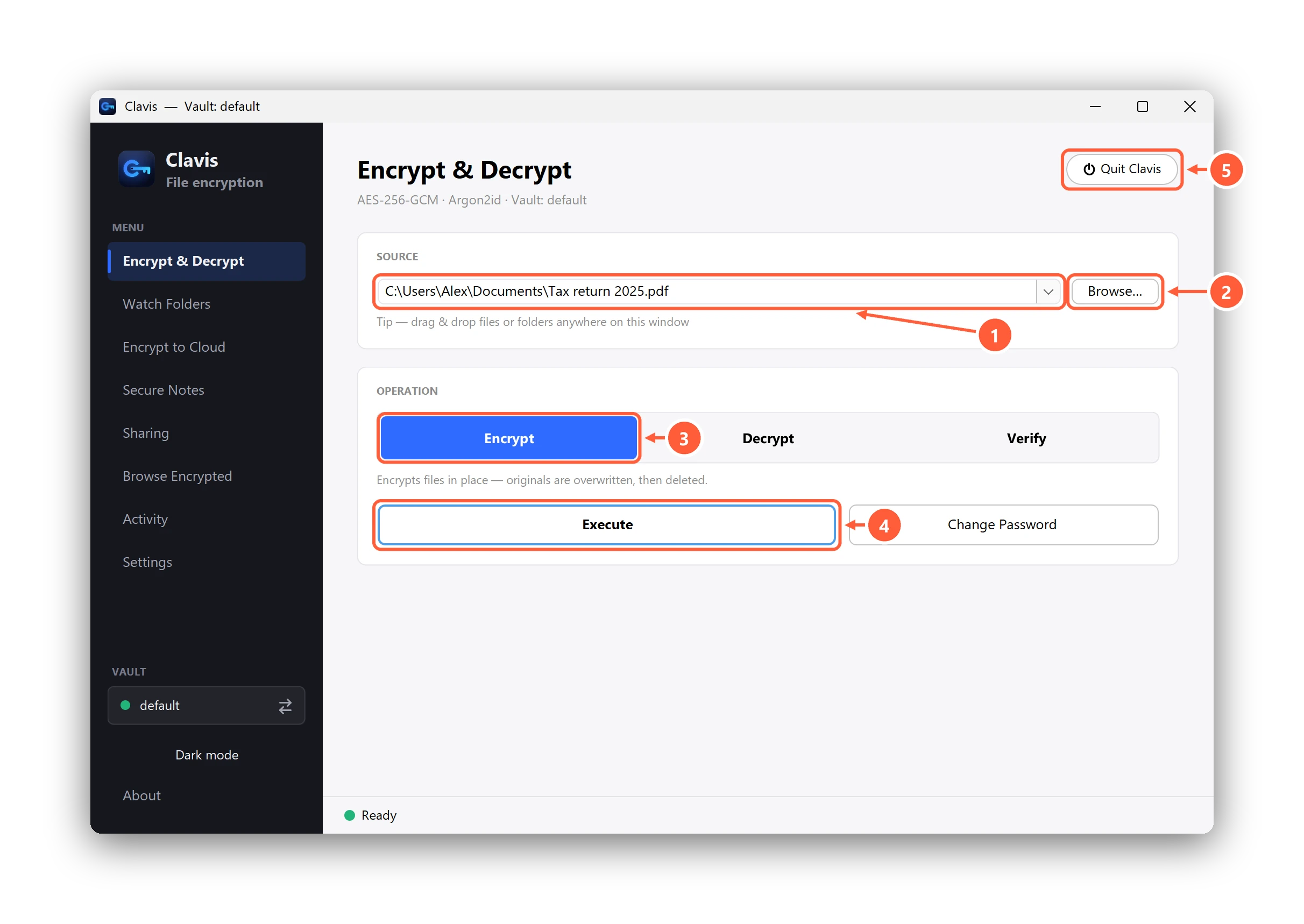
- Drop files here, or paste a path
- …or browse for files and folders
- Choose Encrypt, Decrypt or Verify
- Run it
- Quit closes Clavis completely
Clavis lists what it's about to do and asks you to confirm.
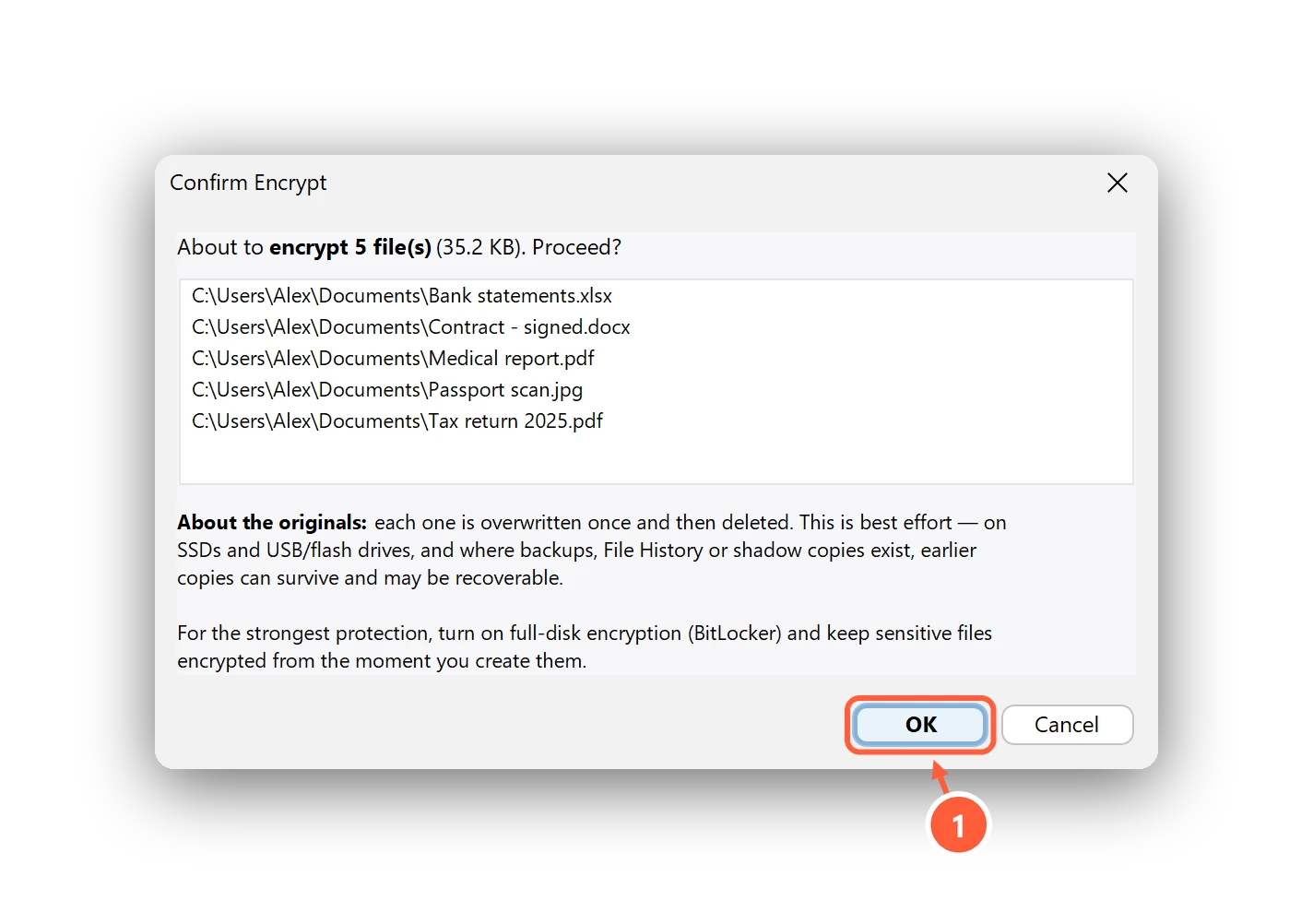
- Clavis lists what it will encrypt — press OK
What happens next:
- Each file is encrypted with AES-256-GCM into a
.encfile with a random name — the real name is stored inside, encrypted, so even file names don't give anything away. - The original is overwritten, then deleted. (On SSDs this is best effort: the drive may keep old copies of blocks out of reach of any app.)
- To see your encrypted files by their real names, use Browse Encrypted.
Decrypt
Choose the .enc file (or a folder of them), select Decrypt and press Execute.
The original file comes back under its real name and the .enc file is removed. If anything has been changed or damaged,
Clavis refuses to decrypt it rather than give you corrupted data.
Only want to look at a file? Open it without decrypting instead (Pro).
Verify
Verify checks that .enc files are intact and open with this vault — without changing anything.
It's a good habit after copying encrypted files to a USB drive or backup disk. For files someone
shared with you, Verify also shows who they came from.
Can't find what you need? All help articles · Email us