
Use more than one vault
Each vault has its own password, recovery key, notes and contacts. Files encrypted in one vault can't be opened with another, which makes vaults a clean way to separate, say, personal and work files. Clavis Free includes one vault; Pro adds as many as you like.
Switch vaults, or create one
Click the vault name at the bottom of the sidebar (or start Clavis when you have more than one vault).
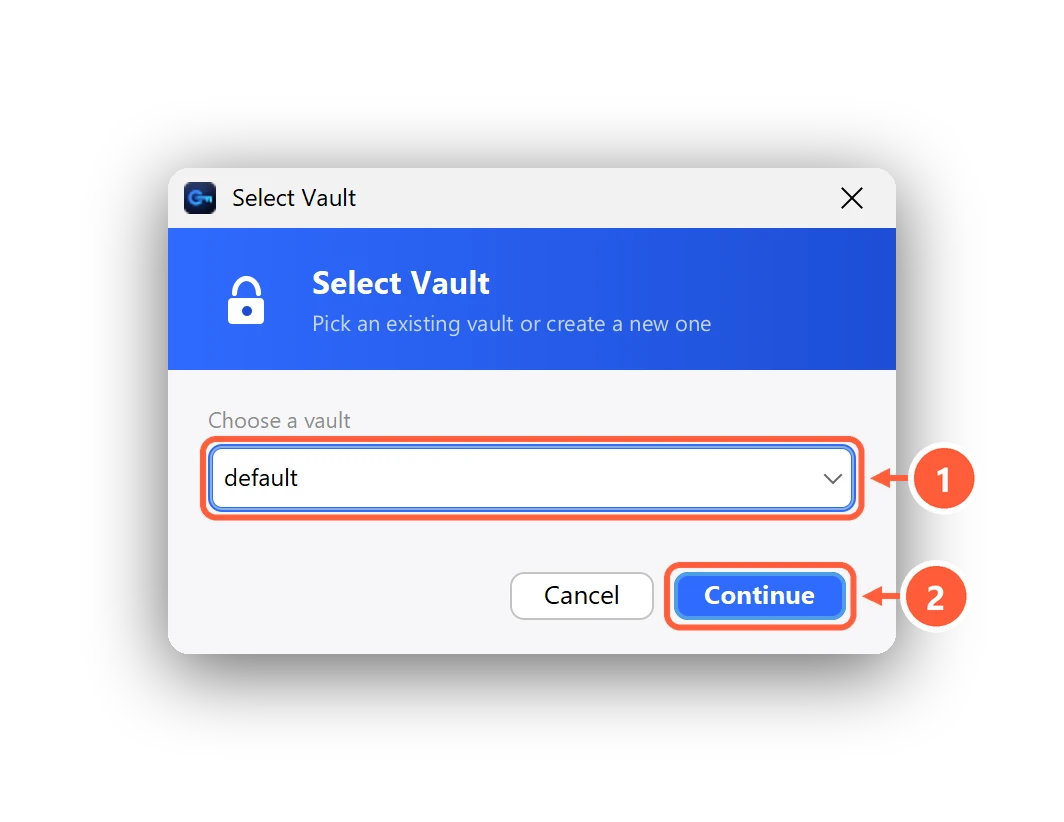
- Pick a vault — or + Create new vault (Pro)
- Continue, then unlock it
To create a vault, choose + Create new vault and press Continue, then give it a name.
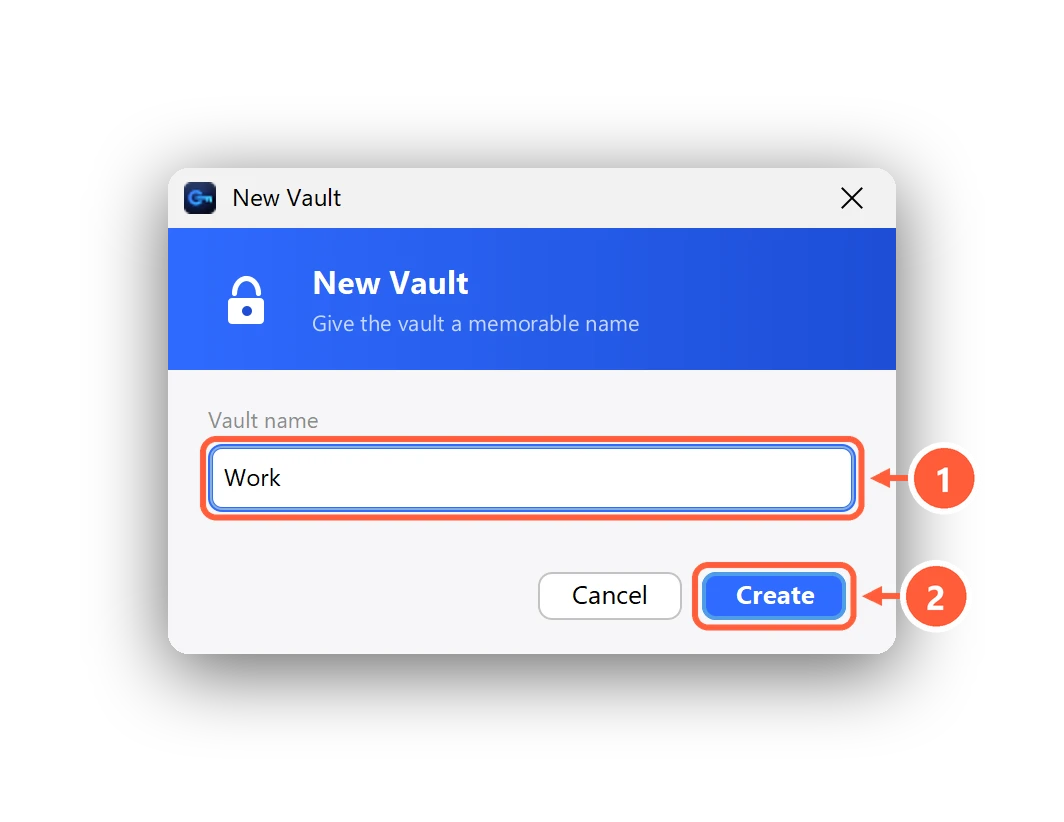
- A name you'll recognise, e.g. Work
- Create — then set its own password
Clavis then asks you to set its password and shows its own recovery key.
Switching vaults stops any watch folders first, so one vault's folders are never encrypted with another vault's password.
Can't find what you need? All help articles · Email us