
Clavis settings explained
Open Settings from the sidebar. Changes take effect when you press Save.
Security and auto-lock
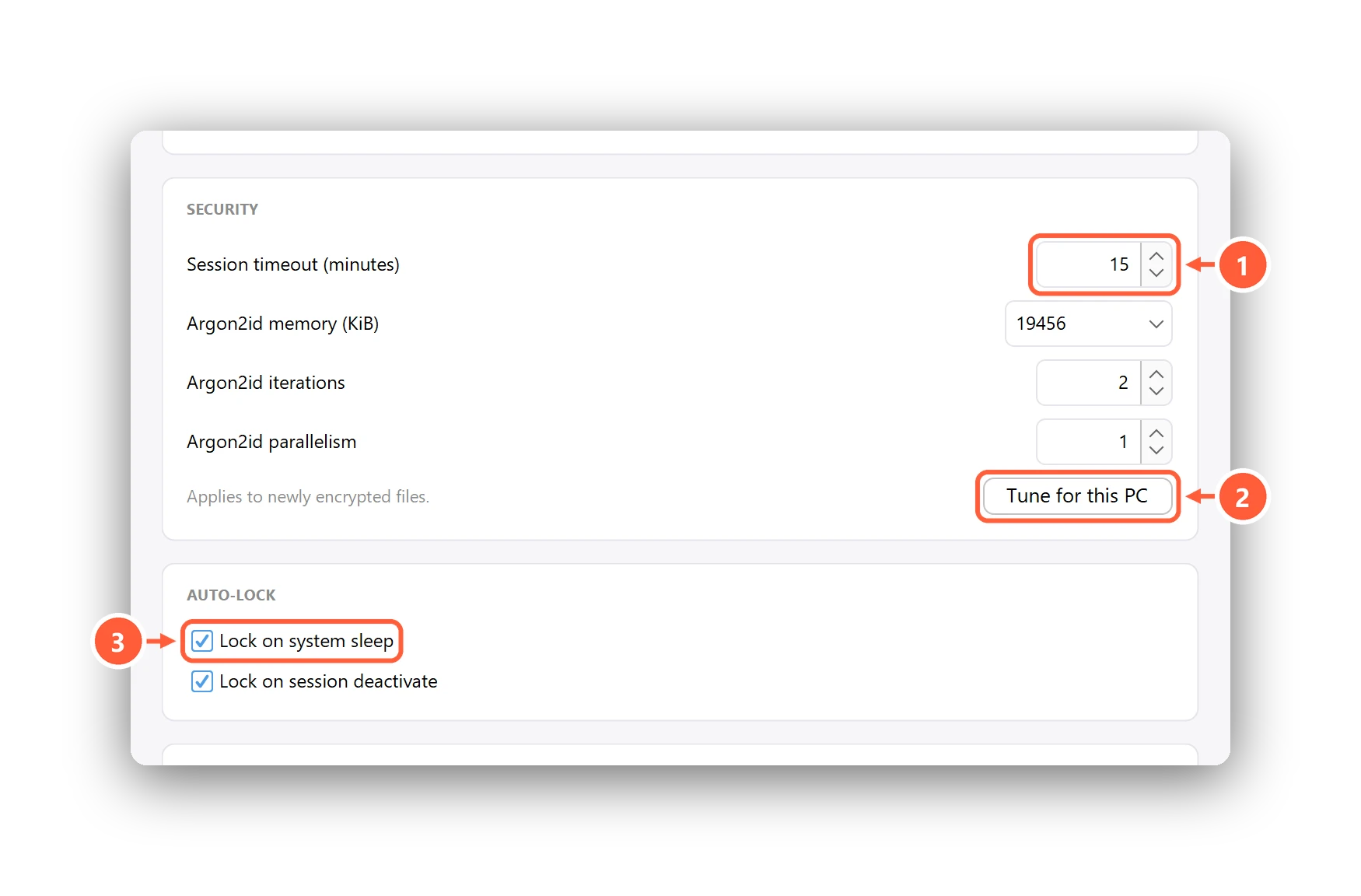
- Lock the vault after this many idle minutes
- Size Argon2id to this PC's speed
- Lock when the PC sleeps or you lock Windows
- Session timeout — Clavis locks the vault after this many minutes without activity.
- Argon2id — how hard Clavis makes each password guess. Tune for this PC picks the strongest setting that still unlocks quickly on your computer. It applies to files you encrypt from now on.
- Lock on system sleep and lock on session deactivate (locking Windows or switching user) lock the vault straight away.
Licence
Shows your plan. See Activate Pro or Premium.
Recovery key, backup and cloud folder
See Recovery key, Backup & restore and Encrypt to cloud.
Language
See Change the language.
Updates and Explorer
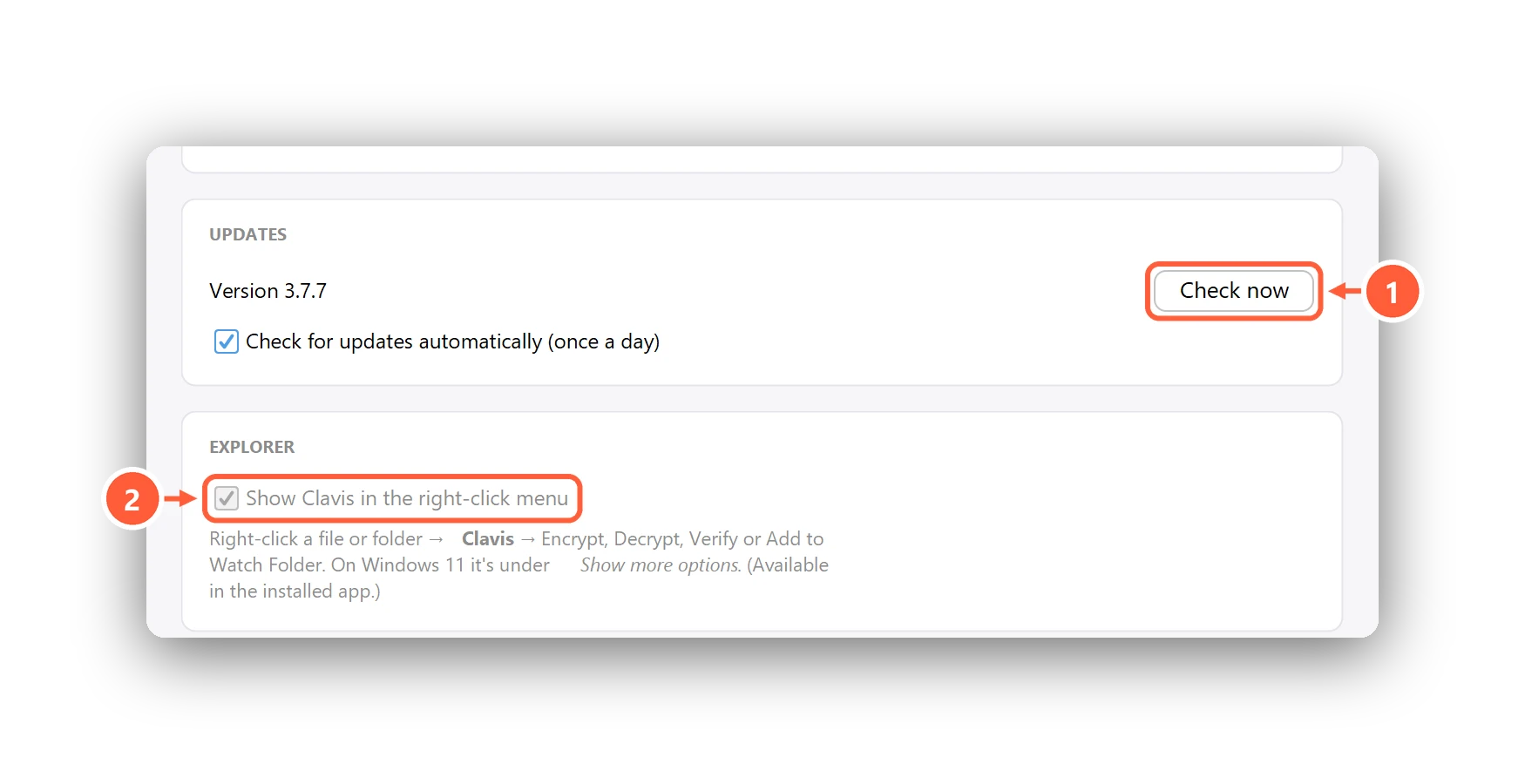
- Check for a new version
- Clavis in the Explorer right-click menu
Clavis checks for updates once a day (untick to turn that off) and every update is signature-checked before it's installed. The Explorer option adds or removes the right-click menu.
Performance
Compression level trades speed for smaller files. Already-compressed files like photos, videos and ZIPs barely shrink.
Can't find what you need? All help articles · Email us